Toolbar
Access design and animation tools from the Aneymate editor
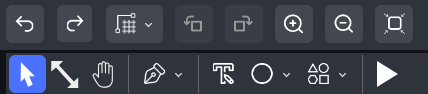
Select Tool
 Selection Tool allows to select elements in the canvas and manipulate properties.
You can also select multiple objects if you click and drag in an empty space.
Using Selection Tool you can also drag elements to change their position.
Selection Tool allows to select elements in the canvas and manipulate properties.
You can also select multiple objects if you click and drag in an empty space.
Using Selection Tool you can also drag elements to change their position.
Scale Tool
 Scale Tool allow to scale elements by changing scale X or Y values
Pan Tool
 Pan tool, accessible via the shortcut key H, enables users to click and drag the canvas for easy repositioning. This feature enhances navigation and ensures a smoother editing experience.
Pen Tool

The Pen tool offers versatile path editing features, including:
- Add Path: Create custom shapes or lines by adding new paths.
- Edit Nodes: Modify existing paths by adjusting individual nodes for precise shape control.
- Polygon: Generate polygon shapes easily for complex designs.
- Adding Paths: The pen tool allows users to create custom paths by placing nodes. To add a path, click on the canvas to place nodes. A line will connect each node sequentially.
Text Tool
 The Text Feature in the editor lets you add and customize text elements for your animations.
Select a style from the Elements panel, then drag it to the canvas and edit the text content, font, size, and color via the properties panel.
The Text Feature in the editor lets you add and customize text elements for your animations.
Select a style from the Elements panel, then drag it to the canvas and edit the text content, font, size, and color via the properties panel.
Basic Shapes Tool
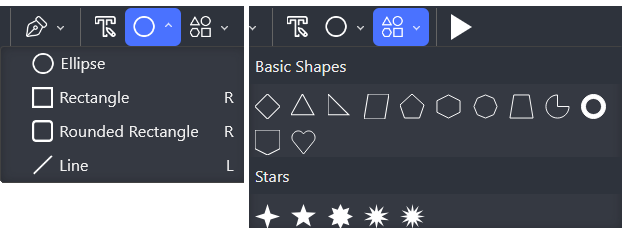
The Shapes feature in the editor, as shown in the screenshot, allows you to add basic geometric shapes to your canvas. These include ellipses, rectangles, rounded rectangles, lines, stars, and other polygons. You can access them from the Shapes Toolbar at the top. Once added to the canvas, you can adjust their size, color, and position through the Properties Panel. Shapes can also be animated using keyframes in the Main Timeline, making them versatile tools for creating dynamic visual elements in your animations